

How to Use a SERP Preview Tool: A Worked Example
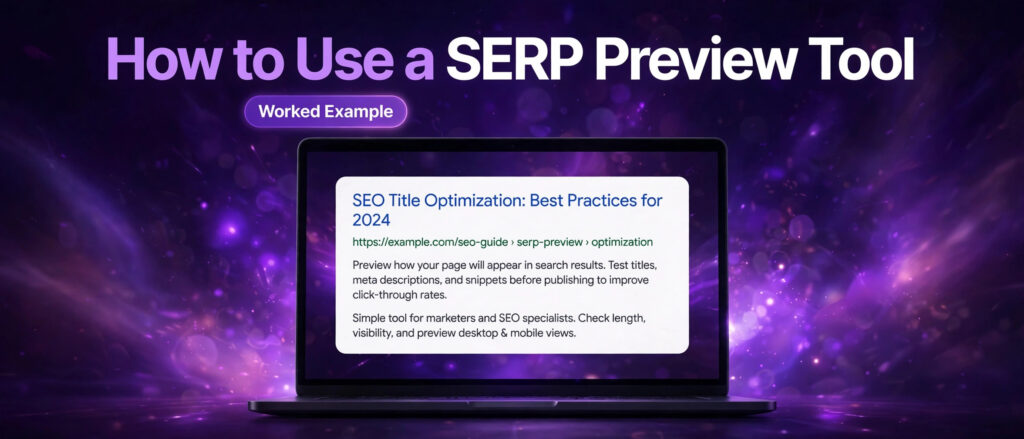
A SERP preview tool is easy to open and easy to misunderstand. The tool itself asks for three short pieces of text, and most people type them in, glance at the mock result, and publish. That quick glance is better than no check at all, but it misses most of what the tool can teach you. A title can look fine on a wide screen and still be cut off on a phone. A description can read well and still hide its only reason to click past the point where Google stops showing it. A page can pass the character counters and still show a messy address that makes searchers scroll past.
This article works through the tool the slow way, with real pages from LinkTrixx itself. You will see the exact title and description of a live guide, the exact title and description of this very article, and a real homepage title that runs too long, each one counted character by character and read the way a searcher would read it. Nothing here is invented. Every number is the true count of the string it describes, and every example is a page you can open today and check for yourself. The same step by step approach works for other free tools: our guide on how to use an image compressor applies the same worked example method to image compression, with real numbers measured live on the tool. Our guide to how to use a long tail keyword generator shows the same kind of worked example for keyword ideas, with two real seeds run on the free tool.
If you have not read the companion guide yet, start there. Our article on what a SERP preview is explains the idea in full: what a SERP is, how Google builds title links and snippets, why Google rewrites them, and how long titles and descriptions should be. This article is the practical half of that pair. It assumes you know what a preview is, and it shows you how to use one, step by step, on real pages.
What a SERP Preview Tool Does
A SERP preview tool takes three things you plan to publish, the page title, the page address, and the meta description, and lays them out exactly as Google would show them in the search results: a blue title link on top, the address below it, and the description underneath in grey text. It is a simulation, not a live result. Nothing is fetched from Google, nothing is ranked, and nothing you type leaves your browser. You type the words in, and the preview shows you what a searcher would see if your page appeared in the results tomorrow.
The free SERP Preview Tool on LinkTrixx keeps that job simple. It gives you three fields, one for the title, one for the URL, and one for the description. As you type, it builds two previews side by side, one for desktop and one for mobile, so you can see how the same listing reads on a wide screen and on a phone. Character counters sit with the fields and warn you as soon as the title passes 60 characters or the description passes 160 characters. When the listing reads well, a Copy button copies the title and description, and a Download button saves the preview details as a text file. There is no account, no sign up, and no upload, because everything runs in your browser.
That simplicity is the point. Other preview tools add pixel width meters, keyword bolding, favicon uploads, and date fields. Those extras can help, and the research below looks at a few of them, but they all serve the same core question: does this listing read well, fit the space, and give a searcher a reason to click? The LinkTrixx tool answers that question with the fewest moving parts, which is why it is a good tool to learn on. Once you can read its two previews properly, you can read any preview tool properly. Keyword research has its own free tools on this site, and our guide What Is a Keyword Combination Generator? shows how three word lists become hundreds of keyword ideas.
Before You Start: Gather Three Things
A preview check is only as good as the words you feed it. Before you open the tool, gather the three pieces it needs, and have them in their final or near final form. Checking a rough draft is useful, but the check that matters is the one you run on the words you actually intend to publish.
First, the page title. This is the title element of the page, the text that becomes the blue link in the results. It should name the topic first, add the benefit second, and carry the brand last if there is room. Aim for 50 to 60 characters, because Google cuts the title link to fit the width of the device, about 600 pixels on desktop, and that width holds roughly 50 to 60 characters of ordinary text. Google has never published a character limit. Its own documentation says there is no limit on how long a title element can be, but the title link is truncated in search results as needed, typically to fit the device width. The character count is a rough guide to that pixel limit, not a rule written by Google. Moz guidance on title tags makes the same point in practical terms: keep titles concise, put the primary keyword near the start, and aim for the range that usually survives truncation, which is 50 to 60 characters.
Second, the page address. This is the full URL of the page, starting with https. The preview formats it the way Google would show it, with the domain and the path a searcher would see. A short, readable address tells the searcher the page is what it claims to be. A long address full of numbers and codes does the opposite. You cannot fix a messy address inside the preview tool, but the preview will show you that it is messy, which is your cue to fix the address itself before you publish.
Third, the meta description. This is the one or two sentence summary that sits under the title and the address. Aim for 150 to 160 characters on desktop, and put the key point in the first 120 characters so the message still reads well on a phone. Google has no published limit here either. Its documentation says there is no limit on how long a meta description can be, but the snippet is truncated in search results as needed, typically to fit the device width, about 920 pixels on desktop and about 680 pixels on mobile. The description is your pitch. It should say what the page offers and why it is worth opening, in plain sentences, not a list of keywords.
If you do not have a description drafted yet, write one before you preview, or use a drafting tool first. Our free Meta Tag Generator writes title and description tags from a topic and a few details, and our guide to how to use the free Meta Tag Generator walks through that process. The preview tool is the last check before publishing, not the first draft, so use the generator to write and the preview to verify.
The Tool Itself: What You Will See
Open the free SERP Preview Tool and the page is plain. At the top it explains the idea in a sentence: a SERP preview shows how a page could look in Google search results before you publish it, with the page title in blue, the page address below it, and the meta description underneath, just as searchers will see them. Below that sit the three fields, labelled for the title, the URL, and the description, each with its own character counter.
Type in the title field and two things happen at once. The counter counts as you type, and the desktop and mobile previews update live. The counter warns you as soon as the title passes 60 characters. That warning is your cue to trim words from the end, or to move the brand name later in the line, or to cut a repeated phrase. Read the title in the preview as you go, because the preview shows the cut more clearly than any number can. A title that is 58 characters of narrow lowercase letters may fit easily, while a title of 58 characters full of capitals and wide letters may already be cut, because Google measures width in pixels, not characters.
Paste the full address into the URL field, including https at the start, so the preview shows the right address. The preview formats the address the way Google would show it. Check that it looks clean and readable. If it is long or full of codes, consider whether the page needs a cleaner address before you publish, because the address is part of the first impression, and it is the one part of the listing you fix in the page settings rather than in the preview tool.
Write the description into the description field, aiming for about 160 characters, with the benefit a searcher will get from clicking. The counter warns you as soon as the description passes 160 characters. Put the key point in the first 120 characters, so the message still reads well on a phone even if the end is cut. Read the description in the preview and ask whether a stranger would understand what the page offers from those two lines alone.
The page shows a desktop preview next to a mobile preview, so you can check how the result looks on a phone screen as well as on a desktop. Look at both. A title that fits on desktop can wrap or be cut on mobile, and a description that reads in full on desktop can lose its ending on a phone. Shorten anything the counters flag as over the limit, and read both previews again after each change. The goal is a listing that reads cleanly in both views, with no sentence ending in dots.
When the preview reads well, click Copy to copy the title and description, or Download to save the preview details as a text file. Paste the copied text into your content system, or keep the downloaded file with your publishing notes so the next person who edits the page can see the exact words that were checked. Then publish the page with the same title and description you previewed, so the live result matches the check you just made.
Worked Example 1: A Guide Page That Fits
The first worked example uses a real LinkTrixx guide that is already live: our article on what a SERP preview is. It was published on 13 November 2026 as the first article in this three article set, and its title and description were checked in the tool before it went live. Here are the exact strings, counted character by character.
The title is: What Is a SERP Preview and Why It Matters for SEO. That is 49 characters. It sits comfortably inside the 60 character warning point, with 11 characters to spare. The topic comes first, the words “SERP Preview” appear in the first half, and the benefit follows in plain words. Nothing is wasted. There is no brand name at the end, because the page is a guide chasing a topic, and for a topic page the topic comes first and the brand comes last, if it appears at all.
The meta description is: Learn what a SERP preview is, how Google builds your title and description, and how to use our free SERP Preview Tool to check both before you publish. That is 151 characters. It sits inside the 150 to 160 character range, and it is 9 characters under the 160 character warning point. It names the topic, it explains the three things the guide covers, and it ends on the free tool, which is the practical reason to click. The key point, what a SERP preview is and how Google builds your title and description, appears in the first 120 characters, so the message survives on a phone even if the final words are cut.
The URL is: https://linktrixx.com/what-is-a-serp-preview/ That is 45 characters, and it reads cleanly. The domain is short, the path matches the topic exactly, and there are no numbers, codes, or extra words. A searcher reading the address can tell what the page is about before clicking, which is exactly what a good address should do.
Put those three strings into the tool and both previews read cleanly. The desktop preview shows the full title in blue, the address below it, and the full description in grey, with nothing cut off and no sentence left unfinished. The mobile preview shows the same, because 49 characters of title and 151 characters of description fit inside the narrower mobile widths as well. This is what a passing check looks like: all three fields inside their limits, the benefit early, and nothing left to chance.
Notice what the check does not do. It does not tell you the page will rank. It does not tell you the description will be the one Google shows, because Google rewrites descriptions in roughly two in three results, usually to match the search more closely. What it tells you is that if Google does use your words, they will read well. That is the whole job, and for this page the job is done.
Worked Example 2: This Very Article
The second worked example is this article itself, the page you are reading now. Its title and description were written first, then checked in the tool, then published with the same words that were checked. Here are the exact strings, counted the same way.
The title is: How to Use a SERP Preview Tool: A Worked Example. That is 48 characters. It sits 12 characters inside the 60 character warning point. The topic comes first, the words “SERP Preview Tool” carry the focus keyword in full, and the final phrase tells the reader what kind of article this is, a worked example rather than a definition. That final phrase matters, because the first article in this set already covers the definition, and a reader choosing between the two needs to see the difference in the title itself.
The meta description is: Learn how to use a SERP preview tool step by step with real LinkTrixx pages, from your first title to the final desktop and mobile check before you publish. That is 156 characters. It sits inside the 150 to 160 character range, and it is 4 characters under the 160 character warning point. It opens with the promise, a step by step guide, then names the proof, real LinkTrixx pages, then names the two checks that matter, desktop and mobile. The key point, that this is a practical guide with real pages, appears in the first 60 characters, so it survives on every device.
The URL is: https://linktrixx.com/how-to-use-a-serp-preview-tool/ That is 53 characters. It matches the title closely, it uses the focus keyword in the path, and it reads cleanly. It is a little longer than the first example, because the slug carries the full phrase, but it is still short enough to show in full in the preview.
Run those three strings through the tool and the result is the same as the first example: both previews show the full listing, nothing is cut, and no sentence ends in dots. Two different articles, two different topics, the same clean result. That is the routine working as it should. Write the words, count them, preview them, fix what the preview flags, and publish only when both views read cleanly.
There is a useful habit hiding in this example. When you write a new article, check its own title and description in the tool before you publish, exactly as was done here, and keep a note of the counts. If the title is 48 characters and the description is 156 characters, you know at a glance that the listing fits. If a later edit changes the title, run the check again. Titles drift during editing, a word added here, a phrase tightened there, and a title that fit on Monday can run long by Friday. The preview takes less than a minute, and it is the last cheap chance to catch the drift.
Worked Example 3: A Title That Runs Long
Not every real page passes the check on the first try. The third worked example is the LinkTrixx homepage itself, and it shows what a failing check looks like, and how to fix it.
The homepage title, as it appears on the live site, runs 63 characters. That is three characters over the 60 character warning point, so the tool flags it. The title opens with the brand name, then a separator, then the words Link Building Agency, then an ampersand, then the words White Label Backlink Partner. The structure is understandable: it names the brand, the service, and the positioning in one line. The problem is length. At 63 characters, Google may cut the final words on desktop, and it is more likely to cut them on mobile, where the width is narrower. The words most likely to be lost are the ones at the end, which happen to be the positioning words, the part that says what kind of partner LinkTrixx is.
This is a common pattern, and it is worth understanding why it happens. Homepage titles try to do too much. They carry the brand, the service, the market, and the promise, all in a single line, because the homepage is the front door and everyone wants their words on it. Each addition is reasonable on its own, and the total quietly runs past the limit. The preview is the tool that makes the total visible. Without it, nobody notices that three extra characters pushed the positioning off the screen.
The fix is to choose what matters most and cut the rest. A shorter version of the same title could read: Link Building Agency That Closes the Ranking Gap. That is 48 characters, comfortably inside the limit, and it keeps the service and the promise while dropping the brand name and the second positioning phrase. The brand is already in the domain and in the site name that Google shows, so losing it from the title costs little. The promise, closing the ranking gap, is the part a stranger needs to see, so it stays.
Our companion comparison article carries the same lesson in miniature. Its title, Free SERP Preview Tool vs Paid SEO Tools: Which One Do You Need, runs 63 characters, three over the warning point, so its final words may be cut in the results. That title was set for the article before this check, and the honest thing to say about it is that it is three characters too long. A shorter version would keep the comparison and drop the question, but the title stands as assigned for this set, and the preview tells you plainly what it costs: the last few words live on borrowed time. That is the tool doing its job, even on our own pages.
The lesson is simple. A title that runs long is not a disaster. It is a decision. Either the words at the end are worth losing, in which case the title is fine as it is, or they are not, in which case the title needs to be shorter. What you must not do is publish without knowing which one it is. The preview tells you, in seconds, and the fix is usually a single cut.
Worked Example 4: Trimming a Description
Titles are not the only field that runs long. Descriptions run long more often, because a description has more room and writers fill it. The fourth worked example shows a description being trimmed, with the counts at each stage, so you can see exactly what was cut and why.
Here is a first draft of a description for this article, written before any trimming: Learn how to use a SERP preview tool step by step, with a real worked example on LinkTrixx pages, so you can check your title and description on desktop and mobile before you publish anything at all. That is 199 characters. It is 39 characters over the 160 character warning point, so the tool flags it, and the preview shows the problem clearly: the final words, “before you publish anything at all”, are cut off, and the sentence ends in dots.
Read the draft and the waste is visible. The phrase “on desktop and mobile” is useful, because it names the two checks, but the closing phrase “before you publish anything at all” adds nothing. The words “anything at all” are filler. The word “real” before “worked example” is also doing little work, because a worked example is real by definition. And the phrase “so you can check your title and description” already says what the reader will do, so the ending only repeats the promise in weaker words.
Here is the trimmed version: Learn how to use a SERP preview tool step by step, with a worked example on LinkTrixx pages, so you can check your title and description before you publish. That is 156 characters. It sits inside the 150 to 160 character range, and it is 4 characters under the warning point. Every word earns its place now. The promise opens the sentence, the proof follows, the action closes it, and nothing trails off into dots.
Compare the two versions side by side and the trimming rule becomes clear. Cut filler words first: “real”, “anything at all”, “on desktop and mobile” if the article already promises both checks elsewhere. Then cut repeated ideas: if the opening already says “step by step”, the closing does not need to repeat the process. Then read the result aloud. If it still sounds like a complete sentence, it is done. If it sounds clipped, you cut too much, and you should restore a word or two from the middle rather than from the end, because the end is where the cut happens in the results.
This exercise works on any page. Take the live description of a page that already ranks, paste it into the tool, and read the preview. Then write a sharper version, check it the same way, and compare the two before you publish the change. The tool makes the comparison quick, and the comparison makes the improvement visible.
Step by Step: The Full Workflow
The four examples above show the tool in action on real pages. This section pulls them together into a single workflow you can follow for every page you publish, from the first draft to the final check.
Step 1. Draft the title and the description before you open the tool. Write the title with the topic first, the benefit second, and the brand last if there is room, aiming for 50 to 60 characters. Write the description as one or two plain sentences, aiming for 150 to 160 characters, with the key point in the first 120 characters. If you need a starting draft, use the Meta Tag Generator to write the tags, then bring the draft to the preview tool for checking.
Step 2. Open the free SERP Preview Tool and type the title into the title field. Watch the counter as you type. If it warns you that the title has passed 60 characters, trim words from the end first, because the end is what Google cuts. Move the brand name later, or drop it, if the topic and the benefit need the room. Read the title in the preview, not only the counter, because wide letters take more room than narrow ones, and the preview shows the real cut.
Step 3. Paste the full address of the page into the URL field, including https at the start. Check that the address looks clean and readable in the preview. If it is long or full of codes, note it as a job for the page settings, not for the preview tool. A clean address is part of the first impression, and it is worth fixing before the page goes live.
Step 4. Write the description into the description field. Watch the counter, and if it warns you that the description has passed 160 characters, trim filler words and repeated ideas first, as in the fourth worked example above. Put the benefit early, in the first 120 characters, so mobile searchers see it. Read the description in the preview and ask whether a stranger would understand what the page offers from those two lines alone.
Step 5. Check both previews, desktop and mobile, side by side. Look for three things: a title that ends in dots, a description that ends in dots, and a benefit that only appears after the cut. Any one of those is a reason to edit. Shorten the flagged field, read both previews again, and repeat until the listing reads cleanly in both views. The goal is a listing with no sentence ending in dots on either device.
Step 6. Click Copy to copy the title and description, and paste them into your content system exactly as checked. If you keep publishing notes, click Download as well and save the text file with them, so the next person who edits the page can see the exact words that were checked. Then publish the page with the same title and description you previewed, so the live result matches the check you just made.
Step 7. After the page is live, check it again in a few weeks, not the next day. Google needs time to recrawl the page, which its documentation says may take a few days to a few weeks, and the snippet Google shows may differ from the one you previewed, because Google rewrites descriptions in roughly two in three results. Search for the page using the query that matters, read the snippet Google shows, and ask whether a searcher would still click. If the snippet answers the query well, leave it alone. If it is poor, fix the page, not only the meta tag, by tightening the opening paragraphs and making sure the title and the heading agree.
Reading the Desktop Preview
The desktop preview is the wider of the two views, and it is the one most people check first. It shows the title on a single line, the address below it, and the description in two lines underneath. The widths behind it are roughly 600 pixels for the title and 920 pixels for the description, which work out at about 50 to 60 characters for a title and about 150 to 160 characters for a description in ordinary text.
Those numbers are guides, not limits written by Google, and other preview tools use slightly different figures for the same widths. The DilDigital snippet generator, for example, works to about 580 to 600 pixels for a desktop title and about 920 pixels for a desktop description, with a mobile title heuristic near 496 pixels. The Autorank preview measures title width at 580 pixels on desktop and 480 pixels on mobile, and suggests 120 to 160 characters for a description. The Axiolo preview tool describes the same desktop title limit as roughly 600 pixels, or 50 to 60 characters of typical text. The figures differ a little because the tools measure with different fonts and different assumptions, but they all point to the same practical rule: keep titles near 60 characters and descriptions near 160, and let the preview itself be the final judge.
When you read the desktop preview, look at the title first. Does it end cleanly, or does it end in dots? If it ends in dots, the words after the cut are invisible to searchers, no matter how good they are. Look at the address next. Does it read as a real page address, or does it look like a string of codes? Then read the description. Does it end with a full stop, or does it trail off? A description that ends cleanly tells the searcher the page is finished and cared for. A description that trails off tells them the opposite, even when the page behind it is excellent.
The desktop preview is also where keyword placement shows up most clearly. Google bolds the words from the search in the snippet, so a title and description that carry the main keyword near the start will show that word in bold near the start, where the eye lands first. A keyword buried at the end of a long title may be cut off before it is ever seen, bold or not. That is why the advice is always the same: topic first, benefit second, brand last.
Reading the Mobile Preview
The mobile preview is the narrower view, and it is the one most people skip. That is a mistake, because most searches now happen on phones, and a preview that only looks right on a wide screen is only half checked. Google uses mobile first indexing, which means it looks at the mobile version of a page first, and the mobile result is the one most searchers will see.
On mobile the title has less room, roughly 480 to 496 pixels by the measurements the tools above use, against about 600 on desktop. A title that fits on desktop can wrap onto a second line or be cut sooner on mobile, depending on the device and the layout Google uses that day. There is no single mobile width to memorise, because phones vary and Google changes its layout over time. The practical rule is simple: check both previews, and if the title only just fits on desktop, shorten it until the mobile preview reads cleanly too.
The description loses room on mobile as well, about 680 pixels against about 920 on desktop, which works out at roughly 120 characters instead of 150 to 160. That is why the key point belongs in the first 120 characters. If the benefit only appears at the very end of a 156 character description, desktop searchers will see it and mobile searchers will not. The first worked example in this article passes that test: its key point appears in the first 120 characters. The fourth worked example passes it too, because the trimmed version puts the promise and the proof in the opening words.
Read the mobile preview as a searcher would, on a small screen, scanning quickly, with nine other results competing for the same glance. Does the title still make sense if the last three words are gone? Does the description still say what the page offers if only the first two lines show? If the answer to either question is no, the listing is not ready, even if the desktop preview looks perfect.
Using Copy and Download in a Publishing Workflow
The Copy and Download buttons look minor, but they close the loop between checking and publishing, and using them properly stops a common failure: the checked words never reaching the live page.
Copy takes the title and description exactly as they appear in the tool and puts them on the clipboard. Paste them directly into the title and description fields of your content system, whether that is WordPress with Rank Math, another editor, or a plain HTML file. Pasting from the tool is better than retyping, because retyping invites small changes, a word swapped here, a comma lost there, and a small change can push a 156 character description over the limit or drop the keyword from the front of the title. The words you publish should be the words you checked, character for character.
Download saves the preview details as a text file. Keep that file with your publishing notes for the page, or in the same folder as the draft. It is useful in three situations. First, when someone else edits the page later, the file shows them the exact title and description that were checked, so they can see whether their edit breaks the fit. Second, when a page is updated months later, the file is the starting point for the new check, and you can compare the old and new versions side by side. Third, when you manage many pages, the files form a simple record of what was checked and when, which is more reliable than memory.
For a site that publishes often, make this a rule: no page goes live without a saved preview check. The check takes less than a minute, the file costs nothing to keep, and the record stops the slow drift where titles grow a word at a time until they no longer fit. Our own publishing routine follows this rule. Every article in this set, including this one, had its title and description checked in the tool before it was published, and the counts are recorded in the article itself, so any reader can verify them.
Seven Mistakes to Avoid
Most preview problems come from a short list of habits. Check your pages against this list before you publish, and you will catch the great majority of them.
- Writing the title for Google instead of for people. A title packed with the same keyword three times may look optimised to its author, but it reads as spam to a searcher and Google may rewrite it. Write the title a person would want to click, with the keyword in it once, near the start.
- Letting the description trail off. A description that ends in dots looks unfinished, and it hides the benefit that was meant to win the click. Trim the description until the preview shows the full sentence on desktop and on mobile.
- Using the same title and description on many pages. Duplicate titles and descriptions confuse searchers and give Google no reason to prefer one page over another. Give every page its own words, even when the pages cover similar ground.
- Hiding the benefit at the end. If the reason to click only appears in the last ten words, mobile searchers will never see it. Put the benefit in the first 120 characters, where every device shows it.
- Promising what the page does not deliver. A title that promises a free tool, a price, or a result the page never mentions will earn the click and lose the visitor in the same minute. The preview should describe the page honestly, because a disappointed visitor does not come back.
- Checking desktop only. Most searches now happen on phones, and a preview that only looks right on a wide screen is only half checked. Always read the mobile preview before you publish.
- Never checking at all. The most common mistake is also the simplest: publishing a page without ever looking at how it will appear in the results. The preview takes less than a minute, and it is the last cheap chance to fix a listing before searchers judge it.
There is an eighth mistake worth naming, because it sits behind the other seven: forgetting the page behind the snippet. A great preview cannot save a thin page. If the page itself does not answer the query, the visitor leaves and the click is wasted. Pair the preview check with a quick read of the page itself, and make sure the opening paragraphs deliver what the title promises. Our guide to what linkable assets are explains the other half of that job, showing how content that earns links is built, and our companion article on how to create linkable content that earns backlinks works through the same idea from the writing side. The preview and the content work together: the content earns the visit, the preview earns the click.
What the Tool Cannot Tell You
A preview tool is honest about its limits, and you should be honest about them too. There are four things it cannot tell you, and each one needs a different tool.
First, it cannot tell you whether the page will rank. Ranking depends on the page content, the links pointing at it, and how well it matches the query, none of which the preview measures. A perfect listing on a page with no authority will still sit on page five. Links earn the ranking, the preview earns the click, and the two jobs need different work. Our link building services explain how editorial links from real publications support pages that already read well, and our SaaS link building service does the same for software product and comparison pages.
Second, it cannot tell you what Google will actually show. Google builds the title link and the snippet automatically for each search, and it may replace your words with text from the page when it judges that text answers the search better. The preview shows what Google would show if it used your words. That is still worth knowing, because your words are the starting point for the broad searches that matter most, and because a clean preview means the page is ready even when Google improvises.
Third, it cannot tell you whether a new title earned more clicks. That needs before and after data from Google Search Console, which is a different kind of test entirely. The honest way to measure it is to note the click through rate for a page and its main queries before the change, publish the new title and description, wait for Google to recrawl the page, and then compare the same queries over a similar period. Seasonal changes and ranking movement will muddy the comparison, so look for a clear pattern across several pages rather than a single day of data. Pages with high impressions and low click through rate are the best candidates for a preview review.
Fourth, it cannot tell you whether the page is worth clicking for a real person. Only reading the page as a stranger can do that. Open the page, read the first two paragraphs, and ask whether they deliver what the title promises. If they do not, fix the page first, then fix the preview. A preview check on a page that does not deliver is polish on a promise the page cannot keep.
A Weekly Preview Routine
A single preview check helps one page. A routine helps the whole site. Here is a short weekly routine that keeps every listing sharp without taking much time.
Start with the pages that matter most: the money pages and the guides that bring in traffic. For LinkTrixx, those are the service pages, link building services, white label link building, SaaS link building, and guest posting, plus the guides that earn the most impressions in Search Console. Check one or two of those pages each week, not all of them at once, and work through the list over a month.
Next, check every new page before it is published, without exception. Make the preview part of the publishing checklist, next to the featured image and the internal links. The check takes less than a minute, and it is far cheaper to fix a title before publishing than to fix it after Google has already shown the cut off version to searchers. That includes a new guide such as our best link building agencies for healthcare companies, which deserves the same title and description check as a money page.
Then, once a month, look in Search Console for pages with high impressions and low click through rate. Those are the pages where the listing is failing, not the content. Open the preview for each one, read it as a searcher would, and rewrite the title or description that is letting the page down. Our companion comparison article, Free SERP Preview Tool vs Paid SEO Tools, explains when a free preview tool is enough for this routine and when a paid suite earns its price, so you can decide what to pay for once the routine grows.
Finally, keep the record. Save the downloaded preview file for each page you check, and note the date. When a title is changed, the file shows what was there before, and the new check shows what replaced it. Over time that record becomes a small library of what works on your site, which titles earn clicks and which ones get cut, and that library is worth more than any single check.
Closing: Check Every Page Before It Goes Live
A SERP preview tool is a small habit with an outsized return. It takes less than a minute, it costs nothing, and it catches the kind of mistake that is invisible in a content system but obvious in the search results. The four worked examples in this article show the range: a guide page that fits, this article itself, a homepage title that runs three characters too long, and a description trimmed from 199 characters to 156. Each one took the same few steps, and each one ended with a listing that reads cleanly on desktop and on mobile.
Make the check part of the routine for every page, not only the important ones. Service pages, guides, tool pages, and blog posts all appear in the same results, and they are all judged by the same three lines. If you publish often, the habit compounds: every listing gets a little sharper, every click through rate gets a little stronger, and the site as a whole looks more trustworthy in the results.
Start with the page you are about to publish next. Open the free SERP Preview Tool, type the title, paste the URL, write the description, and read both previews as a searcher would. If the title reads clearly, the description ends cleanly, and the benefit appears early, publish with confidence. If anything is cut off, vague, or duplicated, fix it now, while the fix is still free. And when you want to know whether a free tool is enough or a paid suite is worth it, read the third article in this set, Free SERP Preview Tool vs Paid SEO Tools, which compares the free LinkTrixx tool with the paid options, prices verified, so you can decide with the facts in front of you.
If your site needs more than on page fixes, our link building services help pages earn the authority to rank, our content writing services help with the pages themselves, and our free SEO tools hub holds the Meta Tag Generator, the Word Counter, and the Keyword Density Checker alongside the preview tool, so the whole routine, write, check, and publish, runs in one place. Start with the preview, though. It is free, it is fast, and it is the closest thing SEO has to seeing your page through the searcher eyes before they ever see it. The same check before you publish habit applies to structured data, and our guide on how to use a JSON formatter and validator shows how to validate a FAQ schema block step by step. Long tail keywords work the same way, and our guide to what long tail keywords are explains the concept before you pick your phrases.
Frequently Asked Questions
How do I use a SERP preview tool?
Open the tool, type the page title into the title field, paste the full page address into the URL field, and write the meta description into the description field. Read the desktop preview and the mobile preview, trim anything the counters flag as over 60 characters for the title or 160 characters for the description, then copy the result or download it and paste it into your content system exactly as checked.
What is the ideal title length for Google?
Aim for 50 to 60 characters. Google has no published character limit and cuts the title link to fit the width of the device, which works out at about 600 pixels on desktop. A title longer than that is cut off with an ellipsis, so put the most important words first and check the preview on desktop and on mobile.
What is the ideal meta description length?
Aim for 150 to 160 characters on desktop and put the key point in the first 120 characters so it still reads well on mobile. Google has no published limit and cuts the snippet to fit the device width, which is about 920 pixels on desktop and about 680 pixels on mobile. A description longer than that is cut off, usually at the last full word.
Why is my title cut off in the preview?
Google measures title width in pixels, not characters, so a title is cut when it runs out of room, not when it hits a fixed number. Wide letters such as capitals take more room than narrow ones, so two titles with the same character count can render differently. Shorten the title, move the brand name later, and put the keyword near the start so it survives the cut.
Can a SERP preview tool predict what Google will show?
No. A preview shows what Google would show if it used your title and description exactly as written. Google builds the title link and the snippet automatically for each search and may replace your words with text from the page when it judges that text answers the search better. A clean preview still matters, because your words are the starting point for the broad searches that matter most.
Is the LinkTrixx SERP Preview Tool free?
Yes. The tool is completely free to use with no sign up, no account, and no limits. Your title, URL, and description are processed in your browser, so nothing is uploaded or stored. Open the tool, type the three fields, check the desktop and mobile previews, then copy the result or download it as a text file.