

What Is a SERP Preview and Why Does It Matter for SEO
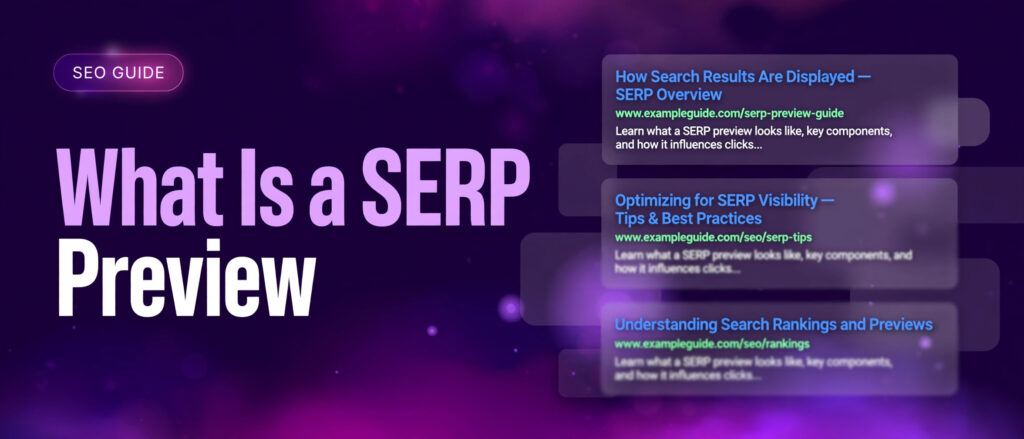
If you have ever wondered what is a SERP preview and why every SEO guide mentions one, the answer is simple. A SERP preview shows you how your page will look in Google search results before you publish it, so you can fix a title that gets cut off or a description that ends in the middle of a sentence while there is still time to change it. That small check sits between ranking and getting the click, and it is one of the cheapest wins in all of SEO. This guide explains what a SERP preview is, what each part of it does, how long your title and description should be, why Google sometimes rewrites them, and how to use the free SERP Preview Tool on LinkTrixx to check every page before it goes live.
What Is a SERP
SERP is short for search engine results page. It is the page Google shows after someone types a search. Most people picture a plain list of blue links, but a modern results page holds much more than that. It can show adverts at the top, a featured snippet that answers the question outright, a People Also Ask box, images, videos, a local map pack, review stars, prices, dates and AI Overviews that summarise answers from several pages at once.
For most pages, though, the ordinary organic result is still the prize. That result has three parts a searcher reads in about a second: a blue title link, a page address and a short description underneath. The searcher compares those three parts across every result on the page and clicks the one that looks most useful. Nothing else on your page gets seen before that choice is made. Your content, your images, your careful argument and your offer all wait behind that one small block of text.
That is why the SERP matters so much. Ranking on page one puts you in front of people, but the snippet is what turns that visibility into a visit. Two pages can sit next to each other in the results, one with a clear title and a description that answers the question, the other with a vague title and a description that trails off into dots. The first one earns the click far more often, even when the second page holds the better article. Searchers judge the page by the preview Google gives them, and they rarely give a second chance to a listing that looks unfinished.
What Is a SERP Preview
A SERP preview is a mock search result. It takes the title, the page address and the meta description you plan to use and lays them out exactly as Google would show them: blue title link on top, address below it, description underneath in grey text. It is a simulation, not a live result. Nothing is fetched from Google and nothing is ranked. You type the words in, and the preview shows you what a searcher would see if your page appeared in the results tomorrow.
Preview tools are sometimes called SERP simulators, snippet previews or title tag previews. The names describe the same job. As Semrush explains in its guide to SERP previews, a preview lets you see how your page appears in search engines before you publish, so you can shape the listing to make it more appealing to users. The point is not to admire the layout. The point is to catch problems early: a title that runs too long, a description that gets cut off before the benefit appears, a keyword buried at the end where nobody reads it, or a URL that looks messy and untrustworthy. Keyword tools work the same way, starting from the phrase you want to check, and our guide What Is a Keyword Combination Generator? explains how a combiner builds keyword ideas from your own word lists.
The three parts of a preview
Every SERP preview shows the same three parts, because every Google result is built from the same three parts.
- The title link. This is the blue clickable headline. Google calls it a title link, and it is usually taken from the title element on your page. Google describes title links as critical to giving users a quick insight into the content of a result and why it is relevant to their query, in its guide to influencing title links. It is the first thing a searcher reads and the main reason they click or scroll past.
- The page address. This sits under the title and shows the domain and the path of the page, often as a breadcrumb. A short, readable address tells the searcher the page is what it claims to be. A long address full of numbers and codes does the opposite, so a clean URL is part of a good preview even though it is not something you type into the tool itself.
- The meta description. This is the one or two sentence summary under the address. Google calls the description part of a result a snippet, and explains in its guide to controlling snippets that snippets are primarily created from page content, though Google sometimes uses the meta description when it describes the page better than the page text does. The description is your pitch. It should say what the page offers and why it is worth opening.
Some previews also show extras such as a site name, a favicon, a date or review stars. Those extras come from structured data and other signals on the page, not from the three fields you type in. The core preview is always the same: title, address, description. If those three read well, the listing reads well.
Preview, simulator and snippet checker are the same job
You will see several names for this kind of tool, and it helps to know they all mean the same thing. A SERP preview tool, a SERP simulator, a snippet preview and a title tag preview all take a title, a URL and a description and show them as a Google result. Some add a pixel width measurement, some add a mobile view, some add a character counter. The LinkTrixx SERP Preview Tool keeps it simple: three fields, a desktop preview, a mobile preview, character counters and a copy and download option. No account, no sign up and no upload, because everything runs in your browser.
Do not confuse a preview tool with a rank checker. A rank checker tells you where a page already sits in the results. A preview tool tells you how a page will look when it gets there. You can preview a page that has never been indexed, which makes the tool useful for writers and editors before publishing, not only for pages that already rank. The preview changes nothing on Google. Only publishing the page does that. What the preview changes is the quality of the words you publish.
Title Length and Pixel Width
The most common question about titles is how long they should be. The honest answer has two parts, because Google measures in pixels, not characters, and the character count is only a rough guide to the pixel limit.
Google cuts titles by width, not by character count
Google has never published a character limit for titles. Its own documentation says there is no limit on how long a title element can be, but the title link is truncated in Google search results as needed, typically to fit the device width. In practice that works out at about 600 pixels on desktop, which fits roughly 50 to 60 characters of ordinary text. The reason the number moves around is that letters have different widths. A capital W takes about three times as much room as a lowercase i, so a 55 character title full of capitals and wide letters can be cut off while a 65 character title in narrow lowercase letters fits in full.
That is why counting characters alone can mislead you. Two titles can share the same character count and render very differently. A preview that measures width, or simply shows the title as Google would show it, tells you the truth that the counter cannot. If the preview cuts your title with an ellipsis, the words after the cut are invisible to searchers, no matter how good they are. Put the most important words first, and treat anything past about 60 characters as living on borrowed time.
Moz guidance on title tags makes the same point in practical terms: keep titles concise, put the primary keyword near the start, and aim for the range that usually survives truncation, which is 50 to 60 characters. The LinkTrixx tool follows the same rule. Its character counter warns you as soon as your title passes 60 characters, so you can trim it before you publish rather than discovering the cut in the live results.
Desktop and mobile show titles differently
Desktop results give the title about 600 pixels on a single line. Mobile results are narrower, so a long title may wrap onto a second line or be cut sooner, depending on the device and the layout Google uses that day. There is no single mobile width to memorise, because phones vary and Google changes its layout over time. The practical rule is simple: check both previews. If the title reads well on desktop and still reads well on mobile, it is safe. If it only just fits on desktop, shorten it until the mobile preview reads cleanly too.
Brand names deserve a thought here. Many sites put the brand at the end of the title, after a separator, so that the keyword and the benefit come first. That works well, because if Google does cut the title, it cuts the brand name first and the useful words survive. Putting the brand first only makes sense for searches where people are already looking for your brand by name. For a new page chasing a topic, the topic comes first and the brand comes last.
What makes a title too long
A title usually runs too long for one of three reasons. The first is keyword stuffing, where the writer repeats the same phrase two or three times in the hope of ranking better. Google advises against this directly and may rewrite a stuffed title altogether. The second is boilerplate, where every page on a site carries the same long tail of category names and brand slogans, so no title says anything distinct. The third is plain enthusiasm, where the writer tries to promise everything in one line. A title is not a paragraph. It is a headline, and a headline that tries to say everything ends up saying nothing clearly. If your title needs more than 60 characters to make sense, the page topic is probably too broad, and the fix is a tighter topic, not a longer title.
Meta Description Length
The meta description is the short summary that sits under the title and the address in a search result. It is written in the head of the page as a meta tag, and it should sum up the page in one or two sentences. Like the title, it has no official character limit from Google. Its documentation says there is no limit on how long a meta description can be, but the snippet is truncated in Google search results as needed, typically to fit the device width. The observed display is about 920 pixels on desktop, which works out at roughly 150 to 160 characters, and about 680 pixels on mobile, which works out at roughly 120 characters.
The safe range for descriptions
Most SEO guides agree on the same practical range, and the research behind it is consistent. Aim for 150 to 160 characters on desktop, and put the key point in the first 120 characters so the message survives on a phone. A description shorter than about 70 characters wastes space that a rival listing will happily fill. A description longer than 160 characters will be cut off, usually at the last full word, with an ellipsis that makes the listing look unfinished.
The LinkTrixx tool uses 160 characters as its warning point. Its counter warns you as soon as your description passes 160 characters, which matches the guidance on the live tool page itself: aim for around 160 characters, because Google usually shows the first 150 to 160 characters of a description and anything longer is cut off. That number is a guide, not a rule written by Google, so treat the visual preview as the final judge. If the preview shows the full sentence, the length is right. If it ends in dots, trim it.
Front load the message
Front loading means putting the most important words at the start. Searchers read the first few words of a description and decide in a glance whether the page answers their question. If the first 120 characters say what the page is and what the reader will get from it, the listing works on every device. If the benefit only appears at the very end, mobile searchers will never see it, because Google will have cut it off before they get there.
A useful shape for most descriptions is answer first, then detail, then a gentle close. The answer tells the searcher the page matches the query. The detail gives one specific reason to click, such as a free tool, a worked example or a clear comparison. The close invites the click without shouting. For example, a description for a guide to linkable assets might open with what a linkable asset is, then name the types the guide covers, then invite the reader to see examples. That shape is worth reading in full in our companion article on what linkable assets are, which is published today alongside this guide.
Every page needs its own description
Google advises against using the same description on many pages. Identical descriptions tell Google nothing distinct about each page, and they tell searchers nothing either. A product page, a guide and a service page answer different questions, so their descriptions should sound different. Writing a unique description for every page takes time, and for a very large site it may not be practical to hand write all of them. Google itself notes that programmatic generation of descriptions can be appropriate for large database driven sites. For the pages that matter most, though, a hand written description is worth the effort, because those are the pages where the click is worth winning. Start with the money pages and the guides that bring in traffic, then work through the rest over time.
If you are writing the title and description together, our free Meta Tag Generator can draft the tags for you, and the Word Counter can check the length of the page itself once the draft is written. The preview tool is the last check before publishing, not the first draft, so use the generator to write and the preview to verify.
Why Google Rewrites Titles and Descriptions
The most surprising thing about SERP previews for many site owners is that the preview is only a suggestion to Google. You write the title and the description, Google reads them, and then Google decides what searchers actually see. Sometimes it shows your words exactly. Often it shows something else. Understanding why that happens stops you from treating a rewrite as a failure, and it tells you how to write words Google is more likely to keep.
How Google builds the title link
Google generates title links automatically. Its documentation lists nine sources it draws on: the content in title elements, the main visual title shown on the page, heading elements such as H1 elements, the content in og title meta tags, other content that is large and prominent through style treatments, other text contained in the page, anchor text on the page, text within links that point to the page, and WebSite structured data. The title element is listed first and it wins most of the time. When Google changed its title system in August 2021, it said content from HTML title tags was still by far the most likely source used, more than 80 percent of the time. After refinements the following month, it said the figure had risen to around 87 percent. Those are the latest figures Google has published, and it has not updated them since.
Google replaces a title when it detects a problem with it. Its documentation names the most common issues: titles that are half empty, titles that are inaccurate or out of date, titles that repeat the same boilerplate across many pages, titles that are stuffed with keywords, and titles that do not match the language of the page. In those cases Google builds a better title from the H1, from prominent text on the page or from anchor text pointing at the page. It cannot do this manually for individual sites, and no request to Google will change a single title. The only lever you have is the page itself: a clear title, a matching H1 and content that says what the title promises.
Keep the title and the H1 closely aligned. When the two agree, Google has little reason to look elsewhere. When they disagree, Google has to choose, and it may choose the H1. That is not a penalty. It is Google picking the text it believes describes the page better. If you want your title to survive, make it the best description of the page on the page.
How often Google rewrites descriptions
Descriptions are rewritten even more often than titles, because Google builds the snippet for each search from the page text that best matches the query. The best known measurements come from two studies in 2020, and later work has found the same pattern. Ahrefs studied 20,000 keywords on desktop and found Google rewrote the supplied meta description in 62.78 percent of results, with the rate running a little higher for long tail searches at 65.62 percent than for short common head terms at 59.65 percent. Portent studied about 30,000 keywords the same year and found rewrite rates of 68 percent on desktop and 71 percent on mobile. Seer Interactive tracked thousands of keywords in 2025 and reported about 70 percent, with a single page showing 2 to 11 different snippets in one month depending on the query.
Read those numbers as a rough guide, not as a current universal rate. Both of the 2020 studies are now several years old, they used different samples and different methods, and they should not be averaged into one tidy statistic. What they agree on is the direction: roughly two in three results show text Google chose, not text the site wrote. The same studies found that keeping a description within the length limits barely changed how often Google rewrote it. In the Ahrefs data, descriptions that were too long were replaced in 61.46 percent of cases, while descriptions within the limits were replaced in 63.69 percent. Length is not the main trigger. Relevance to the query is.
Google rewrites a description most often when the query is specific and your description is general. A page about link building might carry a broad description that fits the head term link building, but a searcher who types a long tail query about SaaS link building costs will get a snippet pulled from the passage on the page that answers that exact question. That is Google doing its job, not Google ignoring your work. A good description still earns its place for broad searches, where a general summary is the best match, and that is where Google uses it most.
What to do when Google rewrites your words
First, check whether the rewrite is actually worse. Search for the page using the query that matters, read the snippet Google shows, and ask whether a searcher would still click. If the snippet answers the query well, leave it alone. Google chose text from your page because it matched the search, and that is a sign the page content is doing its job.
Second, if the snippet is poor, fix the page, not the meta tag alone. A vague snippet usually means the page opens vaguely, with no clear answer in the first paragraphs. Tighten the opening, put the answer to the main query near the top, and make sure the H1 and the title agree. Then check that the description itself is accurate, specific and free of keyword lists. Google advises against descriptions that are just a string of keywords, and it may replace those on sight.
Third, accept that some rewrites will always happen. No preview tool can predict a rewrite, because the rewrite depends on the query, and the same page can show a different snippet for every search. A preview tells you what Google would show if it used your words. That is still worth knowing, because your words are the starting point for the broad searches that matter most, and because a clean preview means the page is ready even when Google improvises.
Why the Preview Matters for Click Through Rate
Click through rate, usually written as CTR, is the share of people who click a result after seeing it. Google Search Console defines it plainly as the click count divided by the impression count, and its Performance report shows clicks, impressions, click through rate and average position for every query and every page. An impression means the page appeared in the results. A click means someone chose it. The gap between the two is where the preview does its work.
Ranking and clicking are two different jobs. Ranking gets the page onto the results page. The snippet gets the page opened. A page can rank in the top three and still earn few clicks if its title is vague and its description is cut off, while the result below it with a sharper listing takes the visit. Improving the title and the description is one of the few ways to earn more traffic without earning a single new ranking, because the page is already visible and only the pitch needs work.
The snippet is the shop window
Think of the search results page as a street of shops. Every shop has a window, and the window is the only thing a passer by sees before deciding to walk in. The title is the shop sign, the description is the display, and the address is the street number that says the shop is real. A clear sign and a tidy display bring people in. A faded sign and an empty window do not, even if the shop inside is excellent.
That comparison explains why small changes to a snippet can matter. Adding the benefit to the description, moving the keyword to the front of the title, or cutting a title that trailed off into dots can change whether a searcher picks your result or the one beside it. None of that requires new content, new links or a new page. It requires reading the preview as a searcher would read it and asking one question: would I click this?
Measure the effect in Search Console
A preview tool cannot tell you whether a new title earned more clicks. That needs before and after data from Google Search Console, which is a different kind of test entirely. The honest way to measure it is to note the click through rate for a page and its main queries before the change, publish the new title and description, wait for Google to recrawl the page, which its documentation says may take a few days to a few weeks, and then compare the same queries over a similar period. Seasonal changes and ranking movement will muddy the comparison, so look for a clear pattern across several pages rather than a single day of data.
Pages with high impressions and low click through rate are the best candidates for a preview review. In Search Console, sort a page by impressions, look for queries where the page appears often but is rarely clicked, and open the preview for that page. The problem is usually visible at once: a title that does not mention the query, a description that says nothing specific, or a snippet that ends before the point is made. Fix the words, check the preview again, publish, and watch the next few weeks of data.
That loop is also why links still matter. A great snippet earns clicks, but a page still needs authority to rank in the first place, and that authority comes from other sites linking to it. Our link building services explain how editorial links from real publications support pages that already read well, and our SaaS link building service does the same for software product and comparison pages. For agencies that deliver links for clients, white label link building keeps the work under your own brand, while guest posting on relevant sites is a practical way to earn the first links for a new page. The preview and the links work together: links earn the ranking, the preview earns the click.
How to Write Titles and Descriptions That Earn Clicks
Good snippet writing is a craft, not a trick. The rules are simple, but they are easy to break when you are in a hurry. The sections below give a working formula for each part, with examples you can adapt to your own pages.
A formula for titles
A strong title usually has three ingredients: the topic, the benefit and, where space allows, the brand. Put the topic first, because that is what the searcher typed. Add the benefit next, because that is why the searcher should pick your page over the nine others. Add the brand last, because it matters least to a stranger and it is the part Google will cut first if the title runs long.
Some title shapes that work well:
- Topic plus benefit. What Is a SERP Preview and Why It Matters for SEO. The topic comes first, the benefit follows, and the reader knows exactly what the page offers.
- Topic plus audience. Link Building for SaaS Companies That Need Links That Last. The audience is named, so the right reader recognises the page at once.
- Topic plus number. 7 Linkable Asset Ideas That Earn Links Without Outreach. The number sets an expectation and the benefit gives a reason to click.
- Topic plus question answered. How Much Does Link Building Cost in 2026. The question matches the search, and the page promises the answer.
Shapes to avoid are just as clear. Avoid titles that are only a brand name, because they say nothing about the page. Avoid titles that are only a keyword repeated twice, because they read as spam and Google may rewrite them. Avoid titles that promise something the page does not deliver, because the visitor will leave at once and the click is wasted. And avoid titles that are clever but unclear. A searcher scanning ten results has no time to decode a joke. Clarity beats cleverness every time.
Keep each title unique across the site. Google advises against repeated or boilerplate text in title elements, and it is important to have distinct text that describes the content of the page in the title element for each page. Two pages with the same title compete with each other in the results and confuse searchers who cannot tell them apart. If two pages must cover similar ground, make the difference plain in the title itself, so the searcher can choose the right one.
A formula for descriptions
A strong description usually has three parts as well: the answer, the detail and the invitation. The answer confirms the page matches the query. The detail gives one specific reason to click. The invitation asks for the click in plain words, without shouting or promising what the page cannot give.
Write the description for a person, not for a search engine. That means full sentences, natural language and no list of keywords separated by commas. It also means matching the tone of the page. A guide can sound helpful. A service page can sound confident. A tool page can sound practical. What never works is a description that could belong to any page on the site. If you can paste the same description onto five different pages and it still makes sense, it is too vague to earn a click.
Include the primary keyword naturally, near the start, because Google bolds query words in the snippet and a bolded word catches the eye. But do not force it. A description that reads well without the keyword is better than one that reads awkwardly with it. The keyword is there to confirm relevance, not to fill a quota. One natural mention is enough.
Good and weak examples
Compare these two descriptions for the same guide. The weak one says: Welcome to our website. We offer many services and helpful guides about SEO and link building. Contact us today for more information. It says nothing about the page, it could sit on any page of the site, and it wastes all 160 characters on filler.
The strong one says: Learn what a SERP preview is, how Google builds your title and description, and how to use our free SERP Preview Tool to check both before you publish. It names the topic, it names the three things the reader will learn, and it names the free tool that makes the advice practical. Every word earns its place, and the whole message fits inside the display limit.
Try the same test on your own pages. Read the description aloud. If it sounds like a real summary of the page, it is probably good. If it sounds like a slogan, rewrite it until it sounds like an answer. Then run it through the preview tool and check that it shows in full on desktop and on mobile.
How to Use the Free SERP Preview Tool Step by Step
The SERP Preview Tool on LinkTrixx is free, with no sign up, no account and no limits. Everything runs in your browser, so your title, URL and description are never uploaded or stored. The page itself explains the idea in plain words: a SERP preview shows how a page could look in Google search results before you publish it, with the page title in blue, the page address below it and the meta description underneath, just as searchers will see them.
Here is the full process, exactly as the tool works on the live page.
Step 1. Type your page title
Open the tool and type the title you plan to use into the title field. Keep it close to 60 characters so Google shows it in full. The character counter sits with the field and counts as you type. It warns you as soon as your title passes 60 characters, which is your cue to trim words from the end or to move the brand name later in the line. Read the title in the preview as you go, because the preview shows the cut more clearly than any number can.
Step 2. Add the page URL
Paste the full address of the page into the URL field, including https at the start, so the preview shows the right address. The preview formats the address the way Google would show it, with the domain and the path a searcher would see. Check that the address looks clean and readable. If it is long or full of codes, consider whether the page needs a cleaner address before you publish, because the address is part of the first impression.
Step 3. Write the meta description
Write the description into the description field, aiming for about 160 characters, with the benefit a searcher will get from clicking. The counter warns you as soon as your description passes 160 characters. Put the key point in the first 120 characters, so the message still reads well on a phone even if the end is cut. Read the description in the preview and ask whether a stranger would understand what the page offers from those two lines alone.
Step 4. Check both previews
The page shows a desktop preview next to a mobile preview, so you can check how the result looks on a phone screen as well as on a desktop. Look at both. A title that fits on desktop can wrap or cut on mobile, and a description that reads in full on desktop can lose its ending on a phone. Shorten anything the counters flag as over the limit, and read both previews again after each change. The goal is a listing that reads cleanly in both views, with no sentence ending in dots.
Step 5. Copy or download the preview
When the preview reads well, click Copy to copy the title and description, or Download to save the preview details as a text file. Paste the copied text into your content system, or keep the downloaded file with your publishing notes so the next person who edits the page can see the exact words that were checked. Then publish the page with the same title and description you previewed, so the live result matches the check you just made.
A worked example using this guide
To see the process in action, here is the exact title and description this article itself uses, checked in the tool before publishing. The title is: What Is a SERP Preview and Why It Matters for SEO. At 49 characters it sits comfortably inside the 60 character warning point, the topic comes first, and the benefit follows in plain words.
The meta description is: Learn what a SERP preview is, how Google builds your title and description, and how to use our free SERP Preview Tool to check both before you publish. It names the topic, it explains the three things the guide covers, and it ends on the free tool, which is the practical reason to click. Both fields show in full in the desktop preview and in the mobile preview, with nothing cut off and no sentence left unfinished.
Try the same exercise with your own pages. Take a page that already ranks, paste its live title and description into the tool, and read the previews. Then write a sharper version, check it the same way, and compare the two side by side before you publish the change. The tool makes the comparison quick, and the comparison makes the improvement visible.
If the title and description need a fresh draft before you preview them, the Meta Tag Generator writes the tags for you, the Keyword Density Checker shows whether the page itself uses the topic words naturally, and the Word Counter checks the length of the draft. All four tools sit together in the free SEO tools hub, and each one runs in the browser with no sign up.
Common Preview Mistakes
Most preview problems come from a short list of habits. Check your pages against this list before you publish, and you will catch the great majority of them.
- Writing the title for Google instead of for people. A title packed with the same keyword three times may look optimised to its author, but it reads as spam to a searcher and Google may rewrite it. Write the title a person would want to click, with the keyword in it once, near the start.
- Letting the description trail off. A description that ends in dots looks unfinished, and it hides the benefit that was meant to win the click. Trim the description until the preview shows the full sentence on desktop and on mobile.
- Using the same title and description on many pages. Duplicate titles and descriptions confuse searchers and give Google no reason to prefer one page over another. Give every page its own words, even when the pages cover similar ground.
- Hiding the benefit at the end. If the reason to click only appears in the last ten words, mobile searchers will never see it. Put the benefit in the first 120 characters, where every device shows it.
- Promising what the page does not deliver. A title that promises a free tool, a price or a result the page never mentions will earn the click and lose the visitor in the same minute. The preview should describe the page honestly, because a disappointed visitor does not come back.
- Checking desktop only. Most searches now happen on phones, and a preview that only looks right on a wide screen is only half checked. Always read the mobile preview before you publish.
- Never checking at all. The most common mistake is also the simplest: publishing a page without ever looking at how it will appear in the results. The preview takes less than a minute, and it is the last cheap chance to fix a listing before searchers judge it.
- Forgetting the page behind the snippet. A great preview cannot save a thin page. If the page itself does not answer the query, the visitor leaves and the click is wasted. Pair the preview check with a quick read of the page itself, and make sure the opening paragraphs deliver what the title promises. Our guide to what an XML sitemap is explains the other half of that job, helping Google find and understand the page once it is published.
SERP Previews and AI Overviews
Search results are changing. AI Overviews now sit above the ordinary results for many queries, summarising answers from several pages at once, and chat tools such as ChatGPT and Perplexity answer questions without showing a results page at all. That raises a fair question: does the SERP preview still matter when the blue link is no longer the only way people reach a page?
The short answer is yes, for three reasons. First, the ordinary results are still there, below the overview, and they still earn clicks from searchers who want to read a full page rather than a summary. Second, the title and description still shape how a page is presented wherever it appears, because AI tools also show a title and a short summary when they list sources, and a clear title helps a page get chosen as a source. Third, the discipline behind the preview, a clear topic, a specific benefit and an honest summary, is the same discipline that makes a page useful to an AI summary. A page that states its answer plainly at the top is easier for every system to understand, whether that system is Google search, an AI overview or a chat answer.
What has changed is that the preview is no longer the whole story. A page also needs clear headings, a direct answer near the top, and structured data that helps machines understand what the page is about. Our guide to what FAQ schema is explains how question and answer markup helps search engines understand the questions a page answers, and it pairs naturally with the preview check: the schema helps the page appear, the preview helps the page get clicked.
None of this makes the preview less useful. It makes it one part of a wider routine. Write the page well, mark it up clearly, check the preview, then publish. The routine takes minutes, and it protects the two things every page needs: to be found, and to be chosen.
Closing: Make the Preview Part of Publishing
A SERP preview is a small habit with an outsized return. It takes less than a minute, it costs nothing, and it catches the kind of mistake that is invisible in a content system but obvious in the search results. Before you publish any page, open the free SERP Preview Tool, type the title, paste the URL, write the description, and read both previews as a searcher would. If the title reads clearly, the description ends cleanly and the benefit appears early, publish with confidence. If anything is cut off, vague or duplicated, fix it now, while the fix is still free.
Make the check part of the routine for every page, not only the important ones. Service pages, guides, tool pages and blog posts all appear in the same results, and they are all judged by the same three lines. If you publish often, the habit compounds: every listing gets a little sharper, every click through rate gets a little stronger, and the site as a whole looks more trustworthy in the results.
The next two articles in this set build on this guide. The second looks at the SERP Preview Tool in practical use, working through real pages step by step. The third compares free and paid options, including our companion piece on the free XML Sitemap Generator against paid SEO tools, so you can decide where free tools are enough and where a paid tool earns its price. If your site needs more than on page fixes, our content writing services can help with the pages themselves, while the link building services above help those pages earn the authority to rank. Start with the preview, though. It is free, it is fast, and it is the closest thing SEO has to seeing your page through the searcher eyes before they ever see it.
Frequently Asked Questions
What is a SERP preview?
A SERP preview is a mock search result that shows how a page could look on a search results page before it is published. It shows the blue title link, the page address and the meta description in the same layout Google uses, so you can check length, wording and truncation before searchers ever see the listing.
How long should a title be for Google?
Aim for 50 to 60 characters. Google has no published character limit and cuts the title link to fit the width of the device, which works out at about 600 pixels on desktop. A title longer than that is cut off with an ellipsis, so put the most important words first and check the preview on desktop and on mobile.
How long should a meta description be?
Aim for 150 to 160 characters on desktop and put the key point in the first 120 characters so it still reads well on mobile. Google has no published limit and cuts the snippet to fit the device width, which is about 920 pixels on desktop and about 680 pixels on mobile. A description longer than that is cut off, usually at the last full word.
Why does Google rewrite my title or description?
Google builds the title link and the snippet automatically for each search. It uses your title element and your meta description as strong starting points, but it may replace them with text from the page when it judges that text answers the search better. Studies by Ahrefs and Portent from 2020 found Google replaced the supplied meta description in roughly two in three results, so a rewrite is normal and not a sign that the page is broken.
Is the meta description a ranking factor?
No. Google has said since 2009 that it does not use the meta description in ranking. The description still matters because it is the pitch that can win the click when Google does show it, and a clear description helps searchers decide that the page answers their question.
Is the LinkTrixx SERP Preview Tool free?
Yes. The tool is completely free to use with no sign up, no account and no limits. Your title, URL and description are processed in your browser, so nothing is uploaded or stored. Open the tool, type the three fields, check the desktop and mobile previews, then copy the result or download it as a text file.