

What Is UTM Tracking and How Does It Work
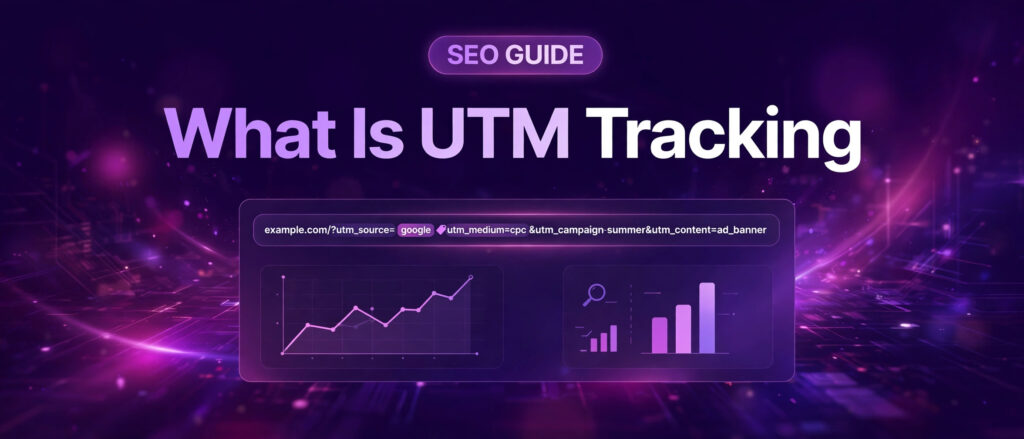
What is UTM tracking? It is the practice of adding short tags to a link so your analytics tool can tell you exactly where each visitor came from. A UTM tagged link looks like an ordinary link with extra text after a question mark, and that extra text records the source, the channel, and the campaign behind the click. When someone clicks it, Google Analytics 4 reads the tags and files the visit under the names you chose, so you can see which emails, ads, posts, and placements actually bring traffic.
This guide explains what UTM tracking is, how it works, what each of the five UTM parameters does, why it matters for SEO and link building, how to build a tagged link step by step with the free LinkTrixx UTM Builder, how to read the results in Google Analytics 4, the naming conventions that keep your reports clean, and the mistakes that quietly break them. Everything here follows the current guidance from Google and from the major marketing guides that rank for this topic, and every source is linked where it supports a claim.
What Is UTM Tracking?
UTM tracking means adding labels to the end of a URL before you share it. The labels are called UTM parameters, also called UTM codes or UTM tags. They are short text snippets in key value pairs, such as utm_source=newsletter, joined by ampersands and placed after a question mark in the link. They do not change the page the link points to. A visitor who clicks a tagged link lands on exactly the same page as a visitor who clicks the plain link. The extra text simply tags the click with details you can track later.
UTM stands for Urchin Tracking Module, named after Urchin, a web analytics company Google acquired in 2005 and turned into Google Analytics. The tagging format became the industry standard for campaign tracking because it works with any analytics platform and needs no technical implementation beyond tagging your links. Shopify’s guide to UTM parameters puts it simply: UTM parameters are tags added to campaign URLs to identify where website visitors came from, telling analytics tools which campaign sent a visitor and whether the link appeared in an email, a social ad, or another marketing channel.
Here is a complete example. A newsletter link to a product page might look like this:
https://example.com/product?utm_source=newsletter&utm_medium=email&utm_campaign=summer_sale
The part after the question mark contains three UTM parameters. The source is newsletter, the medium is email, and the campaign is summer_sale. When someone clicks that link, the analytics tool reads those three values and stores them with the visit, so you can later group sessions, leads, and sales by the campaign that earned them.
What UTM Tracking Is Not
UTM tracking is often confused with other kinds of tracking, so it helps to draw the lines clearly. UTM tracking is not Google Tag Manager. UTM is a URL tagging system that tells analytics tools where a click came from, while Google Tag Manager is a tag management system that deploys and manages tracking code on your website. They solve different problems, and many sites use both.
UTM tracking is also not auto tagging. Google Ads can add its own click identifier to ad URLs automatically, and that identifier carries the campaign data without manual tags. UTM tags are the manual version: you write them yourself, and they work everywhere, including channels where auto tagging does not exist, such as email, social posts, QR codes, and links you place on other websites.
Finally, UTM tracking is not a privacy risk by itself. The tags record campaign names, not people. The one hard rule is never to put personal data in a UTM value: no email addresses, no names, no phone numbers. Those values end up stored in your analytics, and they do not belong there.
How Does UTM Tracking Work?
The UTM tracking process has five steps, and each one is simple. The Hootsuite guide to UTM parameters describes the same flow: the tags tell analytics tools exactly where traffic came from, which campaign drove it, and what content was clicked.
Step 1: You Add UTM Parameters to a Destination URL
Start with the page you want people to land on, then add a question mark and your parameters. Use utm_source, utm_medium, and utm_campaign every time. Add utm_term or utm_content only when you need the extra detail. A builder tool does the formatting for you, which removes the most common source of errors: typos in the parameter names.
Step 2: You Share That Link
Put the tagged link wherever the campaign lives: an email, an ad, a social post, a QR code on a printed page, or a link on another website. The tag travels with the link. Anyone who clicks it carries the campaign data with them to your site.
Step 3: A Visitor Clicks and Lands on Your Page
The visitor sees the same page as anyone else. The parameters are visible in the address bar, and they do not change the content, the layout, or the speed of the page. Some visitors may notice the extra text. Most will not, and it does not affect their experience.
Step 4: Your Analytics Script Reads the Parameters
When the page loads, your analytics script reads the parameters from the address bar. Google Analytics 4 takes the values and stores them as dimensions on the session: session source, session medium, and session campaign, plus term and content where those are set. The original source of the visit is preserved with the session, so later conversions can be tied back to the campaign that brought the visitor in.
Step 5: You Read the Results in Your Reports
Later, you group sessions, leads, and sales by source, medium, and campaign, and compare what each effort delivered. That comparison is the whole point of UTM tracking. Without tags, a visit from your newsletter and a visit from a guest post look identical in your reports. With tags, you can see which one earned the click, and which one earned the sale.
The Five UTM Parameters Explained
Google Analytics recognises five UTM parameters. Three are required for proper attribution, and two are optional for deeper tracking granularity. Google’s own guidance is to always use utm_source, utm_medium, and utm_campaign together whenever you manually tag a campaign link. The table below summarises all five, and the sections after it explain each one in detail.
| Parameter | Required | Question it answers | Example value |
|---|---|---|---|
| utm_source | Yes | Who sent the visitor? | newsletter |
| utm_medium | Yes | Which channel type? | |
| utm_campaign | Yes | Which campaign? | summer_sale |
| utm_term | No | Which keyword? | link_building |
| utm_content | No | Which link or creative? | hero_button |
utm_source: Who Sent the Visitor?
The utm_source parameter identifies where the traffic originates: the specific platform, website, newsletter, or partner that sent visitors to your site. Think of source as the sender. Use the name of the site or sender, such as google, bing, facebook, linkedin, or newsletter. Name the platform or publisher, not the category. Use linkedin, not social. Use customer_newsletter, not email, because email is a medium, not a source.
Source names must stay consistent, or your reports split. If one link uses facebook, another uses Facebook, and a third uses fb, Google Analytics 4 treats those as three different sources, and one campaign appears as three smaller ones. Pick one name for each platform and write it down in your naming convention so the whole team uses it.
utm_medium: Which Channel Type?
The utm_medium parameter specifies the marketing channel type, how the traffic reached you. Think of medium as the road, while source is the sender. Common medium values include email, social, cpc, display, affiliate, referral, and paid_social.
Medium deserves extra care, because Google Analytics 4 uses source and medium together to decide which default channel group a visit belongs to. A medium that Google Analytics 4 does not recognise, such as newsletter or fb_ads, can send the session to Unassigned, and your channel reports stop adding up. The rule is simple: do not invent medium values. Use the short list that Google Analytics 4 recognises, and agree it with your team before anyone tags a link.
The most common medium values and what they mean:
- email: links in email newsletters and email campaigns
- social: unpaid social media posts
- paid_social: paid social media advertising
- cpc: paid search advertising, cost per click
- display: banner and display advertising
- referral: links from other websites, including guest posts and placements
- affiliate: links from affiliate partners
- qr: links behind QR codes on print or packaging
utm_campaign: Which Campaign?
The utm_campaign parameter names your specific marketing initiative, promotion, or ongoing campaign. It groups everything that belongs to one marketing effort, so you can compare campaigns against each other instead of comparing single links.
Use one campaign name across every channel promoting the same offer. If your summer sale runs on email, social, and paid search, all three channels should carry utm_campaign=summer_sale, with different sources and mediums. That way the campaign report shows the full picture, and the source and medium breakdown shows which channel did the work.
Campaign names deserve the same discipline as sources. A name like campaign1, test, or march tells you nothing six months later. Use a name that records what the campaign was and when it ran, such as summer_sale_2026 or webinar_oct_2026, and never rename a campaign halfway through, because the rename splits its numbers into two rows.
utm_term: Which Keyword?
The utm_term parameter records the keyword behind a click, and it is mainly used in paid search. When you run search ads, each ad targets keywords, and utm_term lets you see which keyword earned each visit. For most other channels, leave it out. It adds nothing to an email link or a social post, and an empty parameter is worse than a missing one, because it creates noise in your reports.
utm_content: Which Link or Creative?
The utm_content parameter identifies which link, ad, or creative earned the click, when a page or an email contains more than one link to the same destination. A newsletter with two links to the same product page can tag one utm_content=hero_button and the other utm_content=footer_link, so you can see which placement earned more clicks. It is also used to tell two versions of an ad apart in a test. Like utm_term, it is optional, and you should only use it when the extra detail answers a real question.
Why UTM Tracking Matters for SEO and Link Building
SEO work is easy to measure badly. Rankings move slowly, traffic comes from many places at once, and the link that earned a visit is often invisible in the report. UTM tracking fixes the visibility problem for the traffic you control, and it matters most in exactly the places where link building happens.
First, it shows which placements earn traffic. A guest post on one blog and a link insertion on another look identical in an untagged report: both appear as referral traffic. With utm_source set to the publication name and utm_medium set to referral, each placement gets its own row, and you can see which publication sent readers and which one sent none. That is the difference between knowing your links work and hoping they do.
Second, it separates campaigns that share a channel. Two email campaigns in the same month both appear as email traffic, but with different utm_campaign values you can compare them directly. The same applies to social posts, paid ads, and partner links. Without campaign names, you know the channel worked. With them, you know which effort worked.
Third, it protects your reporting from guesswork. Analytics tools infer the source of a visit from the referrer, and that inference fails often: apps, email clients, and messaging tools frequently pass no referrer at all, so the visit lands as Direct. A UTM tag puts the answer in the URL itself, so it does not depend on the browser or the referrer. The OWOX guide to UTM tags makes the same point: the tags tell Google Analytics 4 where a visit came from, whichever channel sent it.
Fourth, it makes link building accountable. When LinkTrixx places a guest post or a link insertion, the value of the placement is partly the ranking signal it passes and partly the readers it sends. The ranking signal shows up over months in your search positions. The readers show up immediately, but only if the link is tagged. Tagging your own links in outreach, in author bios, and in partner content turns a placement into a measurable channel, and measurable channels are the ones that keep their budget.
Read the link building services page to see how placements are planned, and the guest posting services page for how guest posts are placed. If you run an agency, the same measurement applies to your clients’ campaigns, and the SaaS link building page explains how placements are planned around the pages that drive trials and signups.
How to Build a UTM Link Step by Step With the Free Tool
Building a UTM link by hand is easy to get wrong. A missing ampersand, a space in a value, or a misspelled parameter name breaks the tag silently, and you only find out weeks later when the report shows nothing. A builder tool removes that risk by formatting the link for you. The free UTM Builder on LinkTrixx does exactly that: it has fields for Website URL, source, medium, and campaign, with optional fields for term and content, and the tagged URL updates live as you type, with Copy and Download buttons for the finished link.
Follow these steps to build your first tagged link:
Step 1: Paste Your Destination URL
Open the UTM Builder and paste the full URL of the page you want people to land on. Use the final URL, not a shortened link or a redirect, because a redirect can drop the parameters depending on how it is set up. If the page already has a question mark in its URL, the builder handles the separator for you.
Step 2: Enter the Source
Type the platform or sender in the source field, in lowercase, with no spaces. For a newsletter, use newsletter. For LinkedIn, use linkedin. For a guest post on a partner blog, use the name of the publication. One name, spelled one way, every time.
Step 3: Enter the Medium
Pick the medium from the short list your team agreed on: email, social, cpc, paid_social, display, referral, affiliate, or qr. Do not invent a new medium for one campaign. If you are tagging a link in a guest post, the medium is referral. If you are tagging a link in an email, the medium is email.
Step 4: Enter the Campaign Name
Type the campaign name in lowercase with underscores between words, such as summer_sale_2026. Use the same name on every link in the campaign, across every channel, so the campaign report shows the whole effort in one row.
Step 5: Add Term and Content Only If You Need Them
Leave term and content blank unless you have a specific reason to fill them. Add utm_term for paid search keywords, and utm_content when one email or page has two links to the same destination and you want to know which one earned the click.
Step 6: Copy the Tagged URL and Test It
Copy the finished link from the builder and paste it into your browser before you share it anywhere. Check that the page loads, that the address bar shows the parameters exactly as you typed them, and that nothing is cut off. Then check your analytics real time report to confirm the visit is recorded with the source, medium, and campaign you set. A tagged link that is never tested is a tagged link you cannot trust.
For a full worked example that builds real links for LinkTrixx’s own pages and shows the results, read our companion guide, the UTM Builder worked example, publishing today. It walks through the same tool on live pages, so you can see what each field does in practice. You can also browse the full set of free SEO tools on LinkTrixx, including the FAQ schema guide for the structured data that powers FAQ rich results.
How to Read UTM Data in Google Analytics 4
Building the link is half the job. Reading the data is the other half, and Google Analytics 4 puts UTM data in several places. Knowing where to look saves you from concluding that a campaign failed when it simply reported under a different name.
Traffic Acquisition Report
Start in Reports, then Acquisition, then Traffic acquisition. This report groups sessions by source, medium, and campaign, using the dimensions Session source, Session medium, and Session campaign. Change the primary dimension to Session campaign to compare campaigns, or to Session source and medium to compare channels. A tagged newsletter campaign appears as a row with the source, medium, and campaign you set, while untagged email traffic usually appears as Direct or as an unassigned row.
Default Channel Groups
Google Analytics 4 puts every session into a default channel group, such as Email, Organic Social, Referral, or Paid Search, using rules that read your source and medium values. This is why medium values matter so much. A paid social visit tagged with utm_medium=paid_social lands in Paid Social. The same visit tagged with an invented medium can land in Unassigned, and your channel report stops adding up. If a channel looks empty, check the medium values first, because that is where the error usually lives.
Real Time and DebugView
Before a campaign launches, verify the tags in the real time report. Click your tagged link, then open the real time view and confirm the visit appears with the right source, medium, and campaign. For a deeper check, DebugView shows the parameters exactly as Google Analytics 4 received them, which catches encoding errors and typos that the real time report hides. Verify in DebugView and real time before launch, and never trust a tag you have not seen recorded.
Comparing Campaigns Over Time
UTM data becomes valuable over months, not days. Compare the same campaign name across its full run, and compare campaigns against each other on sessions, conversions, and engagement, not on clicks alone. A campaign that brings many sessions and no conversions is not a success, and a campaign that brings few sessions and several conversions may be your best channel. The tags make that comparison possible. Without them, you are comparing channels, and channels hide the campaigns inside them.
UTM Naming Conventions That Keep GA4 Clean
UTM tracking only works if everyone tags links the same way. Small inconsistencies split one channel into several rows, and the report stops making sense. A naming convention is a short written agreement that the whole team follows, and it has five rules.
Rule 1: Always Use Lowercase
Google Analytics 4 treats values as case sensitive. The values Google and google are two different sources. The values Email, email, and EMAIL become three different mediums. Lowercase everything, with no exceptions, and the split disappears.
Rule 2: Use One Separator and No Spaces
Pick underscores or hyphens and stick to it. Spaces in a value become %20 or a plus sign in the URL, and they are easy to get inconsistent. The value spring_sale_2026 is better than Spring Sale 2026, and it reads cleanly in every report. This guide uses underscores throughout, because that is the most common convention in the guides that rank for this topic.
Rule 3: Fix a Short List of Approved Sources
Agree one name for each platform: facebook, not fb, Facebook, or facebook.com; linkedin, not li or linkedin_com; newsletter, not mail or email_blast. Write the list down and keep it where anyone who builds a link can see it. When a new platform appears, add its name to the list before anyone tags a link from it.
Rule 4: Fix a Short List of Approved Mediums
Keep mediums to a small set that maps to Google Analytics 4 channels: cpc, paid_social, email, social, referral, affiliate, display, and qr. Do not invent new ones. If a medium is not on the list, the link waits until the list is updated, because an invented medium costs more in broken reports than the delay costs in time.
Rule 5: Write Down Every Campaign Name
Keep a simple record of every tagged link: the full URL, the campaign name, the date it launched, and where it was shared. Without that record, you will forget what campaign_b meant, and nobody will be able to explain a row in the report six months later. A shared spreadsheet is enough. The record does not need to be fancy. It needs to exist.
Common UTM Mistakes and How to Avoid Them
Most UTM problems are not technical. They are habits: small inconsistencies that pile up until the reports stop making sense. These are the mistakes that appear in audit after audit, and each one has a simple fix.
Mistake 1: Tagging Internal Links
Never put UTM parameters on links between pages on your own website. An internal link with UTM tags overwrites the real source of the visit, so a visitor who arrived from your newsletter and then clicked a tagged banner on your homepage is recorded as arriving from the banner, not the newsletter. Your campaign data is corrupted, and your user journey data with it. UTM tags belong only on links that bring people to your site from outside it.
Mistake 2: Mixed Case and Spelling
Facebook, facebook, and FACEBOOK are three sources in Google Analytics 4. Newsletter, newsletter, and news_letter are three more. The fix is the lowercase rule and the approved source list, applied by everyone, every time. One person tagging by hand can undo a month of clean data in a single afternoon, so the convention must be written down and shared, not carried in one person’s head.
Mistake 3: Invented Medium Values
Mediums like newsletter, fb_ads, or social_paid do not match the channel rules Google Analytics 4 uses, so the sessions fall into Unassigned or the wrong channel. Use only the approved list. If you are unsure which medium fits a link, ask before you tag it, because a wrong medium is worse than a missing one: a missing tag leaves the visit unattributed, while a wrong tag attributes it to the wrong channel.
Mistake 4: Spaces and Special Characters in Values
A space in a value becomes %20 in the URL, and an ampersand, hash, or percent sign inside a value can corrupt the link entirely, because those characters have special meaning in a URL. Use underscores between words, and never put an ampersand, hash, or percent sign in a value. A builder tool encodes values for you, which is another reason to build links with a tool instead of typing them by hand.
Mistake 5: Tagging the Wrong Page
A tagged link that points to a broken page, or to a page that redirects without carrying the parameters, loses the tags. Always test the final link in a browser before you share it, and check that the parameters survive any redirect on the way to the page. If a redirect drops them, fix the redirect or tag the final destination directly.
Mistake 6: Forgetting utm_campaign
A link with source and medium but no campaign tells you the channel and nothing else. Months later, you cannot tie that traffic to any launch, offer, or effort. Set all three required parameters on every link, every time. If you cannot name the campaign, the link is not ready to share.
Mistake 7: No Record of What You Built
Teams that tag links without recording them end up with reports full of campaign names nobody recognises. Keep the shared record described above: the full URL, the campaign name, the launch date, and where the link was shared. It takes a minute per link, and it saves hours of detective work later.
UTM Tracking for Link Building Campaigns
Link building and UTM tracking belong together, because a placement you cannot measure is a placement you cannot defend. Here is how to apply UTM tracking to a link building campaign without breaking the rules that keep your links safe.
Tag the links you control. When you place a guest post, the link inside the article can carry utm_source set to the publication name, utm_medium set to referral, and utm_campaign set to the campaign the placement belongs to. When you share a placement on social media or in an email to a client, tag those shares too, with the right source and medium for each channel. The placement itself earns the ranking signal. The tag measures the readers.
Do not tag links on your own site. The rule against internal UTM tags applies inside link building as well. A link from your homepage to your services page should never carry UTM parameters, even during a campaign, because it overwrites the source that brought the visitor to your site in the first place. Agencies running client campaigns can use the same tagging inside their white label link building fulfilment, with reports carrying the agency’s brand.
Compare placements, not just totals. After a month of tagged placements, open the traffic acquisition report and group by session source. The publications that sent engaged readers will stand out from the ones that sent none, and that comparison should feed your next prospect list. A publication that sends readers is worth more than one that only passes authority, because it does both jobs at once.
Keep the tags invisible to the reader. A tagged link in a guest post looks slightly longer than a plain link, and some publishers prefer clean URLs in their articles. If a publisher asks for a clean link, respect that: the ranking value of the placement matters more than the measurement. Measure the placements that allow tags, and let the untagged ones earn their value through rankings.
For the placements themselves, see how LinkTrixx plans campaigns on the link building services page, and how guest posts are written and placed on the guest posting page. Our guide to LinkTrixx guest posting services explains the placement process, and the LinkTrixx SaaS link building services article shows how the same process works for SaaS brands. To learn the tool in practice, read the UTM Builder worked example, publishing today alongside this guide.
Start Tracking Your Campaigns Today
UTM tracking is one of the simplest skills in marketing, and one of the easiest to get wrong. The concepts fit on a single page: five parameters, three required, lowercase values, no spaces, no invented mediums, no tags on internal links, and a written record of every link you build. The discipline is what takes practice, and the practice pays off the first time you can answer, with evidence, which campaign earned the traffic.
Open the free UTM Builder and build your first tagged link now. Paste a destination URL, set the source, medium, and campaign, copy the finished link, and test it in your browser. Then open your analytics real time report and watch the visit arrive with the names you chose. That single test teaches more than any guide, because it shows the whole system working end to end.
When the first campaign is tagged, read the UTM Builder worked example to see the tool applied to real pages, and browse the LinkTrixx blog for more guides on measuring the work your links do.
Frequently Asked Questions
What is UTM tracking?
UTM tracking is the practice of adding short tags called UTM parameters to a link so analytics tools can tell where each visitor came from. The tags record the source, medium, and campaign behind the click. When someone clicks a tagged link, Google Analytics 4 reads the tags and files the visit under the names you chose.
What does UTM stand for?
UTM stands for Urchin Tracking Module, named after Urchin, a web analytics company Google acquired in 2005 and turned into Google Analytics. The tagging format became the industry standard for campaign tracking because it works with any analytics platform and needs no technical setup beyond tagging your links.
What are the five UTM parameters?
The five UTM parameters are utm_source, utm_medium, utm_campaign, utm_term, and utm_content. Source, medium, and campaign are required on every manually tagged link. Term records the keyword behind a click, mainly in paid search, and content identifies which link or creative earned the click when a page has more than one link to the same destination.
Do UTM parameters affect SEO?
UTM parameters do not change the page a link points to and do not pass ranking value by themselves. They help SEO indirectly by showing which placements, campaigns, and channels send engaged visitors, so you can invest in the links and content that work. Never put UTM tags on internal links, because they overwrite the real source of the visit and corrupt your reports.
Where do I see UTM data in Google Analytics 4?
Open Reports, then Acquisition, then Traffic acquisition, and change the primary dimension to Session source, Session medium, or Session campaign. Google Analytics 4 also uses your source and medium values to assign each session to a default channel group such as Email, Organic Social, Referral, or Paid Search. Verify new tags in the real time report and in DebugView before a campaign launches.
How do I build a UTM link?
Paste your destination URL into the free LinkTrixx UTM Builder, enter the source, medium, and campaign in lowercase with underscores instead of spaces, add term and content only if you need them, then copy the tagged URL and test it in your browser. Check the real time report in Google Analytics 4 to confirm the visit is recorded with the source, medium, and campaign you set.